
Before You Panic, Figure Out What’s Actually Wrong
Your tablet won’t turn on, or it’s crawling, or the battery drains in an hour. Common tablet problems almost always fall into one of five categories: power, performance, battery, connectivity, or apps. So, once you know which one you’re dealing with, the fix usually becomes obvious.
This guide covers both iPad and Android tablets, since the causes overlap more than most guides admit. First, work through the fix for your specific symptom. Then, if nothing helps, the honest next step is a real diagnostic.
Quick Answer: What’s Wrong With Your Tablet?
First, identify the category. If it won’t power on at all, that’s a power issue or it’s sluggish but otherwise working, that’s performance. Or it dies fast, that’s battery. If apps or the internet aren’t cooperating, that’s connectivity or software. Each category below has its own fastest fix, so jump to the one that matches what you’re seeing.
Power Problems: Tablet Won’t Turn On or Off
This is often the most alarming symptom, but it’s frequently the easiest to fix. On an iPad, press and quickly release Volume Up, then Volume Down, then hold the power button until the Apple logo appears. On most Android tablets, meanwhile, hold the power button for 10 to 15 seconds to force a restart.
If the screen still stays dark, the battery may be deeply drained rather than dead. So, plug it into a high-wattage charger and wait 15 to 20 minutes before trying again. Because a fully drained battery can take time to register a charge, don’t assume failure too quickly.

Performance Problems: Tablet Running Slow or Freezing
A sluggish tablet has a few usual suspects. First, check if you recently installed a major update, since both iPadOS and Android trigger a process called indexing right after installation. This reorganizes files and scans photos for AI features, and it can make the tablet feel slow for a day or two. That’s not damage. It’s temporary.
Next, close background apps that are quietly eating memory. On Android, tap the recent apps button and swipe away anything you don’t need. On iPad, swipe up from the bottom and swipe away unused apps. Also, clear your tablet’s storage if it’s nearly full, since low storage slows almost everything down. A simple restart clears temporary files too, so try that before anything more drastic.
If ghost touches or an unresponsive screen show up alongside the slowness, clean the display with a microfiber cloth first. After all, oils and debris on high-sensitivity screens can genuinely cause phantom taps.
Common Tablet Problems With Battery and Charging
Battery complaints split into two different issues, and they’re not the same fix. First, a tablet that drains fast while you’re using it normally often comes down to background app activity, high brightness, or frequent notifications. So, check your battery usage breakdown in Settings to see which app is the real culprit.
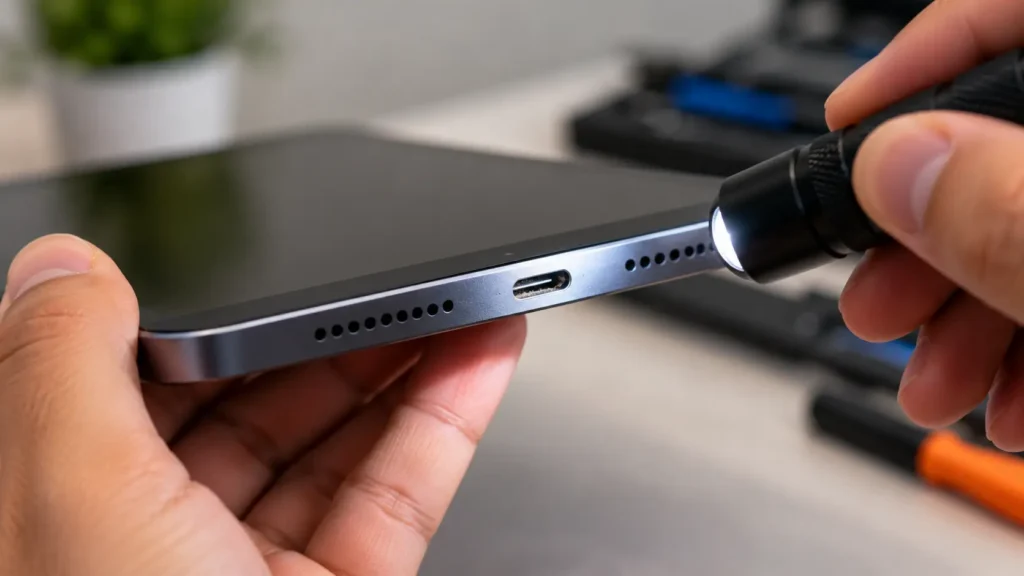
A tablet that won’t charge at all, or charges painfully slowly, points somewhere else entirely. Debris in the charging port is one of the most common causes, and it’s an easy one to check yourself. Our charging port cleaning guide walks through exactly how to do this safely, without risking damage to the pins. Also, try a different cable and adapter before assuming the tablet itself has failed, since a bad cable causes more charging complaints than people expect.
More Common Tablet Problems: Connectivity and Apps
Wi-Fi trouble usually responds well to a network reset. On Android, go to Settings, then System, then Reset Options, then Reset Wi-Fi. On iPad, go to Settings, then General, then Transfer or Reset, then Reset Network Settings. This clears out old, broken connection data your tablet may still be holding onto.
App crashes often come down to a stale cache. On Android, go to Settings, then Apps, find the problem app, and clear its cache. On iPad, since iOS doesn’t allow the same cache-clearing option, deleting and reinstalling the app usually does the trick instead. If several apps crash at once, check for updates to Android System WebView or Google Chrome, since outdated versions of these can cause widespread app instability.
When Common Tablet Problems Need a Real Diagnostic
A few signs mean it’s time to stop troubleshooting at home and get a professional opinion instead:
- The tablet won’t respond to a force restart at all. This can point to a deeper hardware issue, not a software glitch.
- The battery drains in under an hour even after checking app usage. This often means the battery itself has worn out.
- The charging port looks physically damaged after cleaning. Bent pins or visible corrosion need professional attention.
- The screen shows cracks, dead pixels, or unresponsive zones. No software fix resolves physical display damage.
- Problems keep coming back after every fix. A recurring issue usually points to something a full diagnostic needs to uncover.
Why Choose Phone Expert for Tablet Repair
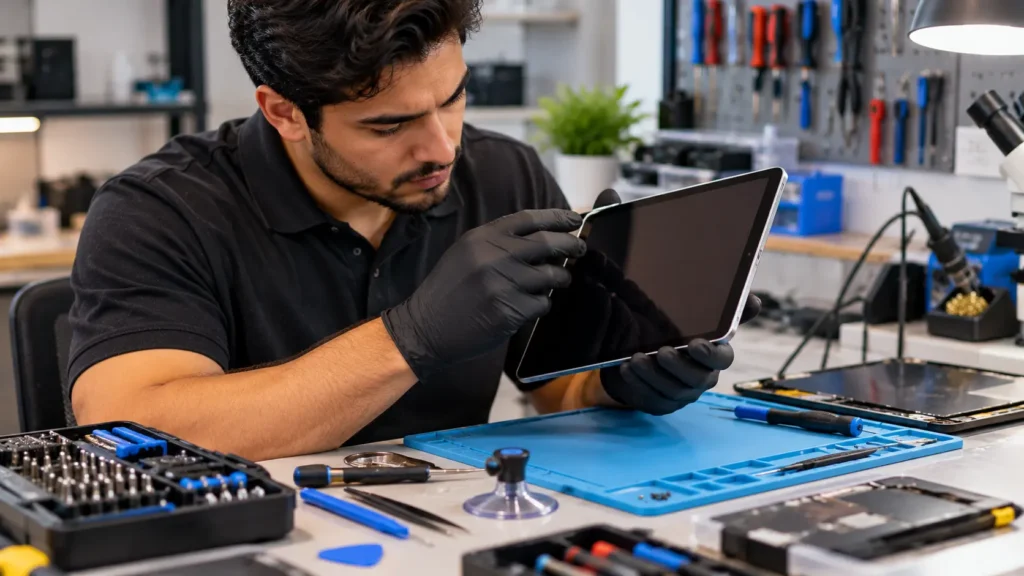
We see the full range of common tablet problems every week, and we start every visit the same way: an honest diagnostic, not a guess. Our technicians test the battery, the charging system, and the display separately, so you know exactly what’s wrong before you pay for anything. If your issue turns out to be a free software fix, we’ll tell you that instead of selling you a repair you don’t need.
When a real repair is the right call, we use quality-matched parts and test everything before handing your tablet back.
Common Tablet Problems: Mistakes to Avoid
- Force restarting during a system update. This can corrupt the update entirely and create a bigger problem than the one you started with.
- Assuming every slowdown means the tablet is failing. Post-update indexing is temporary and resolves on its own within a day or two.
- Ignoring a charging port issue for weeks. Debris left alone can compact further and eventually damage the pins.
- Skipping the battery usage check. Most battery drain complaints have an identifiable app-level cause worth ruling out first.
- Waiting too long after a screen crack to get it looked at. Small damage tends to spread, especially with continued use.
Expert Tip
Expert Tip: According to a detailed tablet troubleshooting reference, a consistent troubleshooting sequence resolves roughly 80% of common tablet problems in under five minutes. Starting with a restart, then checking for debris or background apps, before assuming the worst, saves most people both time and money.
Frequently Asked Questions
Freezing often comes from background app overload, a full storage drive, or leftover issues after a major software update. A force restart resolves many cases immediately.
The most common causes are debris in the charging port, a worn cable, or a weak adapter. Try a different cable first, then check the port for buildup.
Major updates trigger background indexing that reorganizes files and scans photos. This temporarily slows the tablet, but it typically resolves within a day or two.
If a force restart doesn’t work, if the battery drains in under an hour, or if you see physical screen or port damage, it’s time for a professional diagnostic.
Yes. Oils and debris on high-sensitivity displays can cause ghost touches or unresponsive areas. Clean the screen with a microfiber cloth before assuming hardware failure.
Resetting network settings usually helps, since your tablet may be holding onto old, broken connection data. Both Android and iPad have a dedicated reset option for this.
Conclusion: Solve Common Tablet Problems the Smart Way
Most tablet issues fall into a handful of predictable categories, and working through them in order saves real time and money. Common tablet problems like freezing, slow charging, and app crashes usually resolve with a restart, a cache clear, or a quick settings check. When they don’t, that’s a clear signal the issue runs deeper than software.
If you’ve tried the fixes above and your tablet still isn’t behaving, Phone Expert Phone Repair & Designs will give you an honest diagnostic and a real answer. Contact us or stop by for a full tablet checkup.